Skip to content

Instantly share code, notes, and snippets.

Show Gist options
  • Select an option

  • Save HimDek/e09340eae2861e1ad8b7f6bdba5ee9ff to your computer and use it in GitHub Desktop.

Select an option

Save HimDek/e09340eae2861e1ad8b7f6bdba5ee9ff to your computer and use it in GitHub Desktop.
This Guide will show you how to install and run apk files or Android apps in any Edition of Windows 11 using Windows Subsystem for Android. WSA or Windows Subsystem for Android is a Tool that allows Windows to run Android Apps directly without using any emulator.

Install Android apps or apk files in Windows using Windows Subsystem for Android

WSA or Windows Subsystem for Android is a Tool that allows Windows to run Android Apps directly without using any emulator. The problem is Windows Subsystem for Android is currently only available through preview via the Beta Channel of the Windows Insider Program. But if you follow my guide, you don't have to be in Windows Insider Program to try it out. The only thing you need is Windows 11 installed and some patience.

Prerequisites:

  • Windows Subsystem for Android or WSA must be Installed.

Click here to view the guide that shows how to install Windows Subsystem for Android in any Edition of Windows 11 (including Windows 11 Home) non Inider or stable release.

How to Install Android Apps or apk files in Windows Subsystem for Android:

  • First install Windows Subsystem for Android. Click here to know how to do that.
  • Search and run Windows Subsystem for Android Setting from Windows start menu.
  • The window shown in the screenshot below will appear. There, click on the icon in the extreme left side of the Files box. This will start Windows Subsystem for Android and open the File Manager App in Android. This can take some time so be patient.
  • Keep File Manager running otherwise Windows Subsystem for Android will terminate itself.
  • Enable Optional Diagnostic Data and Developer mode in Windows Subsystem for Android Setting Window and click the Refresh button in the IP address Section.
  • Click here to download the latest version of adb and extract the downloaded zip file.
  • Inside the extracted folder, there should be a file named adb.exe along with a plenty of other files.
  • Put the apk files of the Android apps that you want to install in this folder, and rename them to names that are easier to remember.

    Note: You can download apk files of Android apps from websites like APKPure, APKMirror or F-Droid. These are trusted websites.

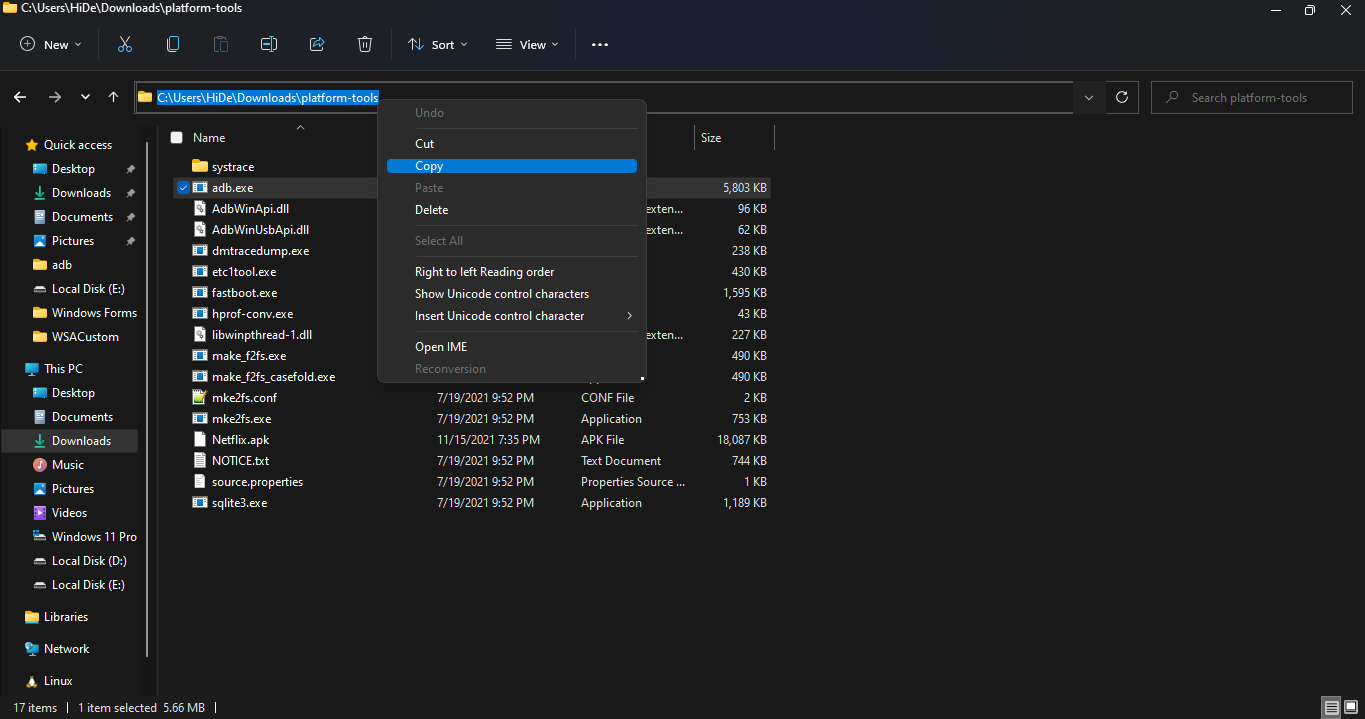
  • Copy the path of this folder from the pathbox in Windows File Explorer as shown in the screenshot below: 11
  • Search for Command Prompt in Windows Start Menu and Open it.
  • Type cd "" in the command prompt. Inside those "", paste the copied path by pressing Ctrl + V. The windows should look something like the below screenshot. Then press Enter. 12
  • Now, type adb connect 127.0.0.1:58526 in the Command Prompt Window. Press Enter and wait for the connection.
  • Once connected, type adb install "name.apk" in the Command Prompt. Replace name with the name of the apk file that you want to install and press Enter. After successful install, the installed App will appear in Windows Start Menu. Repeat this step for all the apk files that you want to install and they will appear in Windows Start Menu as well.

Thats it! Thanks for using this Guide. I hope it helped.

@andymarco21365-dot

Copy link
Copy Markdown

Thanks for putting together this guide. The step-by-step instructions are very clear, especially the ADB installation part which can be confusing for beginners. Running Android apps directly on Windows without a heavy emulator is definitely a useful option for many users.

For people who regularly test Android applications and social media tools, having a simple APK installation method like this saves a lot of time. I recently came across TopFollow, which provides information and resources related to social media growth and Android app usage. It can be a useful reference for users looking to explore engagement and follower-growth tools alongside APK-based applications.

Appreciate the detailed tutorial and screenshots!

@davidhammad

Copy link
Copy Markdown

This guide is helpful for anyone who wants to install and test Android APK files on Windows without using a heavy emulator. For apps like cocoflix, understanding WSA setup and safe APK installation steps can make the process much smoother.

@davidhammad

Copy link
Copy Markdown

This guide is helpful for installing Android APK files on Windows through WSA without using a heavy emulator.It can also be useful for users who want to test entertainment apps after cocoflix app download apk on a PC setup.

@ronaldrome4

ronaldrome4 commented Jun 15, 2026

Copy link
Copy Markdown

One of the most interesting uses for WSA is testing Android apps without needing a separate phone. It's especially useful for checking how different text styles render across apps, since some platforms handle Unicode characters differently. I've used tools like a cursed text generator to create stylized text and then test how it appears in various Android social and messaging apps running through WSA.

@davidhammad

Copy link
Copy Markdown

This guide is helpful for installing Android APK files on Windows through WSA without using a heavy emulator.It can also be useful for users who want to test entertainment apps after cocoflix app download apk on a PC setup.

@ronaldrome4

Copy link
Copy Markdown

One of the most interesting uses for WSA is testing Android apps without needing a separate phone. It's especially useful for checking how different text styles render across apps, since some platforms handle Unicode characters differently. I've used tools like a Grow a Garden Calculator to create stylized text and then test how it appears in various Android social and messaging apps running through WSA.

@apksavefoldercom-wq

Copy link
Copy Markdown

APK SAVE FOLDER offers multiple online casino games for download. Play slots, card games, and casino style earning games easily on mobile devices.

@apkunknown134

Copy link
Copy Markdown

APK UNKOWN. Download free apps, games, and tools securely. All files are safe, virus-protected, and fully secure.

Sign up for free to join this conversation on GitHub. Already have an account? Sign in to comment